

You've got a MacBook on the left and a Windows desktop on the right, and right now there are two mice and two keyboards on your desk because that's the default. The fix is a KVM. The question is whether you spend $80-$300 on a hardware KVM switch, or skip the hardware entirely and use a software KVM that shares your existing mouse and keyboard across both machines over the network.
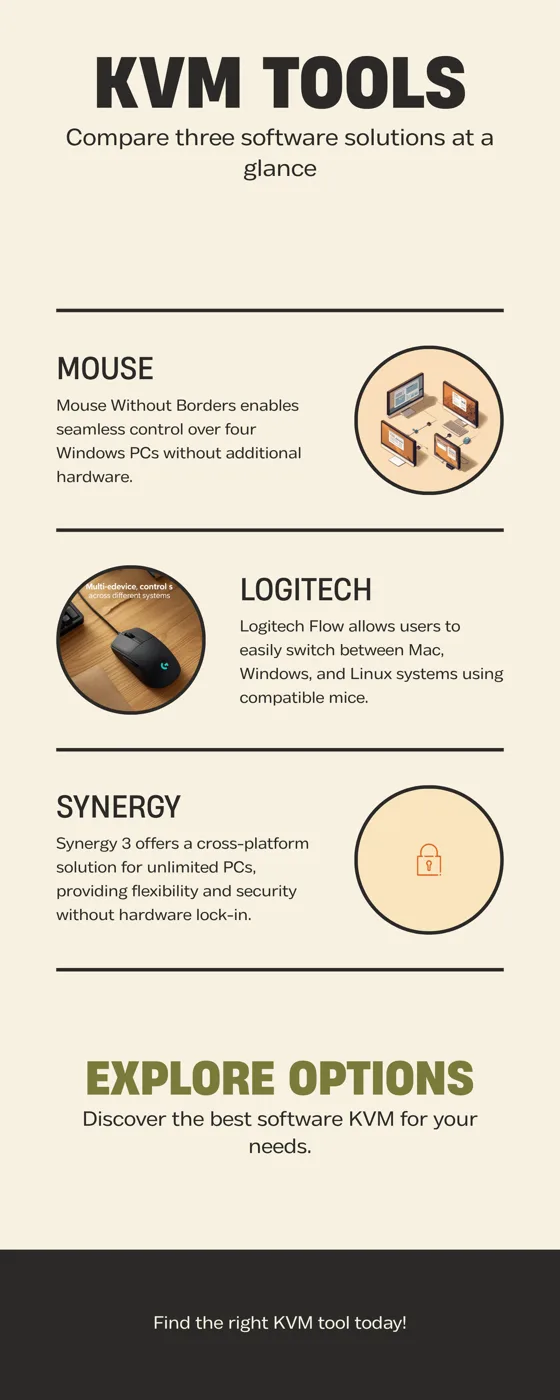
Three software options dominate this category in 2026, and they pick three different trade-offs. Microsoft's Mouse Without Borders is free but Windows-only. Logitech Flow is free if you already own a Logitech mouse but locks you into their hardware. Synergy 3 costs $29 but works with anything. Here's which one fits your setup.
Bottom line
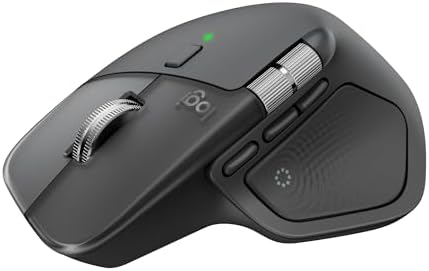
Best for cross-platform Mac + Windows + Linux setups: Logitech Flow, free if you already own a Logitech MX Master 4 ($119.99) or MX Master 3S ($85-$100). Native Mac and Windows, file drag-and-drop, clipboard sync, no extra software cost.
Best free option for two Windows PCs: Microsoft Mouse Without Borders. Zero cost, no hardware lock-in, four-PC limit. Windows-only and that's a hard wall.
Best paid option for mixed hardware (or Linux): Synergy 3 (~$29 one-time, Personal license). Cross-platform, encrypted, no Logitech mouse required. The pick when you can't or don't want to commit to one ecosystem.
Quick Comparison
| Feature | Mouse Without Borders | Logitech Flow | Synergy 3 |
|---|---|---|---|
| Cost | Free | Free (with supported Logitech device) | $29 one-time (Personal); $49 (Pro) |
| OS Support | Windows only | Mac, Windows, Linux | Mac, Windows, Linux |
| Max Computers | 4 | 3 | Unlimited (Pro) |
| Hardware Required | None | Logitech mouse (Flow-supported) | None |
| File Drag-and-Drop | Yes | Yes | Pro tier only |
| Clipboard Sync | Yes | Yes | Yes (encrypted) |
| Network Required | Same LAN/Wi-Fi | Same LAN/Wi-Fi | Same LAN/Wi-Fi |
| Made By | Microsoft (Garage / PowerToys) | Logitech | Symless |
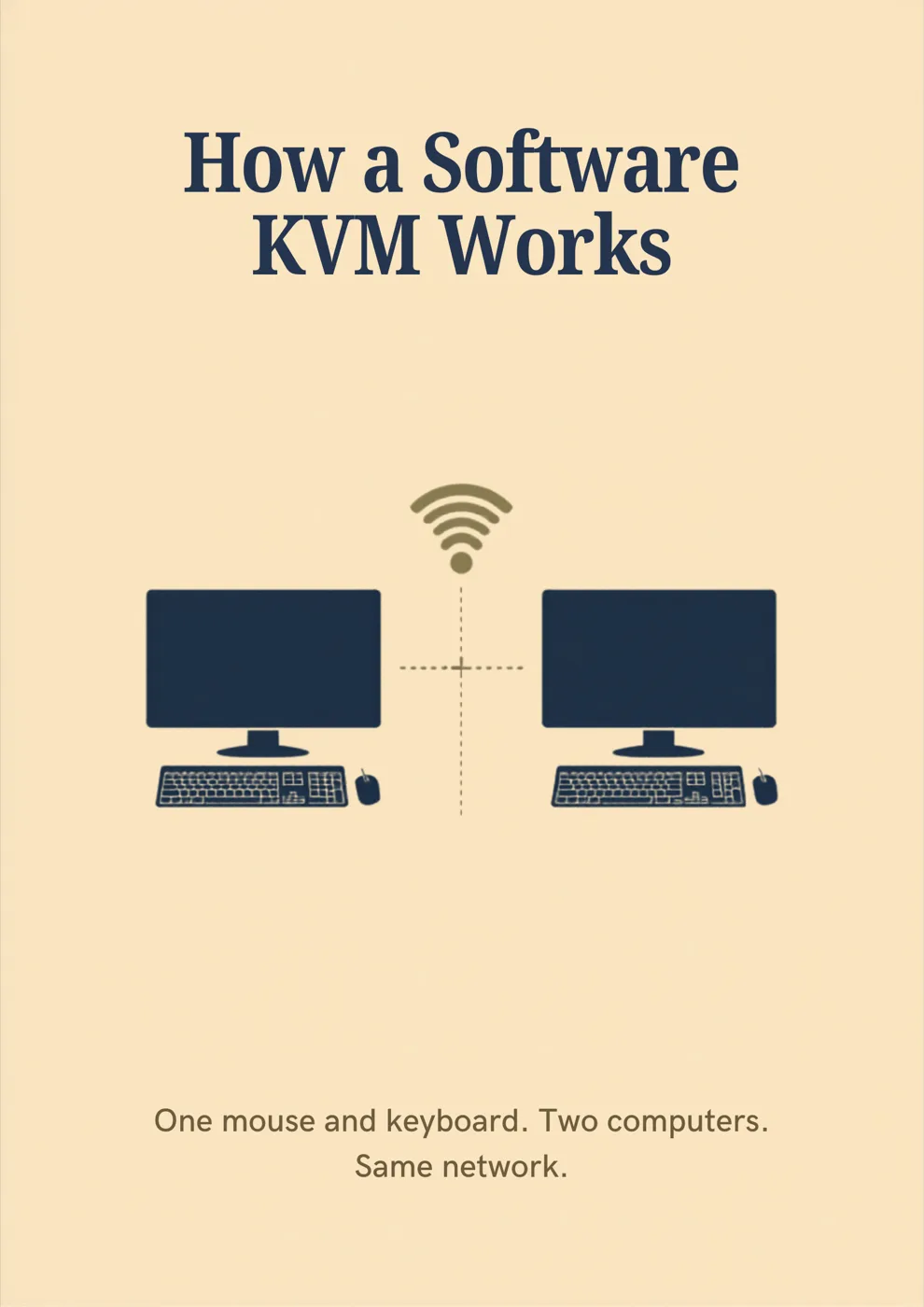
All three operate on the same basic principle: a small daemon runs on each computer, watches the cursor, and when you push it past the edge of a screen, hands control off to the next machine on the list. None of them route video. Each computer keeps its own monitor and just trades input devices when the cursor crosses over.
Mouse Without Borders: Best Free Option for Windows-Only Setups
Mouse Without Borders is a free Microsoft Garage project that lets you control up to four Windows PCs from one mouse and keyboard. It's been around since 2011 and is still actively maintained inside Microsoft PowerToys, so it gets occasional updates and ships pre-bundled with the PowerToys utility suite that most Windows power users already have installed.
The setup is almost embarrassingly simple. Install on both PCs, generate a security code on the first machine, paste it into the second machine, and the two PCs find each other on the local network. From that moment, you push your cursor off the right edge of one screen and it appears on the left edge of the other. Drag and drop files between machines. Copy text on one, paste on the other. Press the same hotkey to lock all connected PCs at once.
The hard wall: Mouse Without Borders is Windows only. Microsoft has not announced macOS or Linux support and there is no public roadmap for it. If your second computer is a Mac, this tool simply won't work. The daemon isn't available for macOS, and there's no compatibility shim that makes it work. The community has asked Microsoft about cross-platform support repeatedly on the PowerToys GitHub repository; the answer is consistently "not on the roadmap."
Best for: Two-PC home offices where both machines are running Windows. Households with a personal desktop and a work laptop both on Windows. Anyone with a tight or zero budget who isn't crossing the Windows/Mac line. The other big use case is gamers with a streaming PC and a gaming PC side-by-side.
Where it falls short: Anyone with a Mac in the mix. Mac+Windows is the entire premise of cross-platform KVM use cases, and Mouse Without Borders simply doesn't address it.
Logitech Flow: Best for Mac + Windows Mixed Setups
Logitech Flow is a feature inside Logi Options+ (Logitech's universal driver software) that lets a single supported Logitech mouse and keyboard control up to three computers across Mac, Windows, and Linux. The big draw: it's the only major option here that "just works" across Mac and Windows out of the box, no terminal, no config files, no purchase.
The catch is that Flow requires a Flow-supported Logitech mouse. If you already own one, Flow is functionally free and probably the right choice for any mixed Mac+Windows setup. If you don't, the cost is whatever Logitech mouse you choose to buy. The good news is the supported list spans most of Logitech's productivity lineup, including:
- The MX Master 4 ($119.99), Logitech's current flagship with haptic scroll feedback and the new Actions Ring
- The MX Master 3S ($85-$100), the previous flagship at a steep discount, same Flow capability
- The MX Keys S ($110-$135) keyboard, which works with Flow when paired with a supported mouse so the same keyboard moves between hosts alongside the cursor
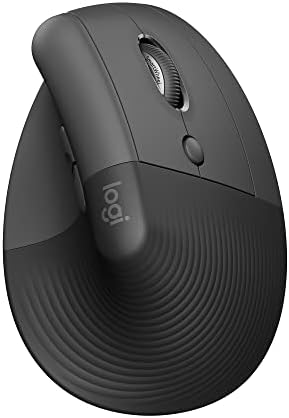
- The Logitech Lift Vertical Ergonomic Mouse ($63.99−20%) for users who need a vertical/ergonomic shape but still want Flow
Flow's experience is the most polished of the three. File drag-and-drop works between Mac and Windows, clipboard sync handles text and small images, and switching is essentially instant. The cursor just continues onto the next machine the moment it crosses the edge. Logi Options+ runs in the background on both machines and they communicate over the local network.
Setup steps:
- Install Logi Options+ on both machines from logitech.com/options-plus
- Plug in or pair the supported Logitech mouse (Bolt receiver or Bluetooth, with Bolt recommended for stability)
- Open Options+ on both machines while connected to the same Wi-Fi or Ethernet network
- The "Flow" tab in Options+ will detect both computers automatically; drag the screen icons to match your physical layout
- Done. Push the cursor off the screen edge to test
Best for: Anyone with a Mac and a Windows machine on the same desk who already owns a recent Logitech mouse, or who is shopping for one anyway. Hybrid-work setups (personal Mac + work Windows). Creative professionals who need clipboard sync between machines.
Where it falls short: Locked into Logitech hardware. Three-computer maximum (Mouse Without Borders allows four, Synergy Pro is unlimited). If your Logitech mouse goes down, your KVM goes down with it. Linux support exists but is more limited than the Mac/Windows experience.
Synergy 3: Best Paid Cross-Platform Option
Synergy 3 is the commercial software KVM made by Symless, the longest-running player in this category. It's the option you reach for when none of the free tiers fit. Typically that means you're running Linux, you don't want to commit to Logitech hardware, or you need to share input across more than three machines at once.
Pricing is a one-time purchase: $29 for the Personal license (one to three computers, basic features) or $49 for the Pro license (unlimited computers, encrypted connection, file drag-and-drop, advanced configuration). No subscription, no per-month fees. You buy once and own the version you bought.
What you get for the money is flexibility. Synergy runs natively on Windows, macOS, and Linux, and unlike Flow it doesn't care what mouse or keyboard you use. The input devices just have to work on the host computer. Setup is more involved than Flow or Mouse Without Borders. You designate one machine as the "server" (the one with the physical mouse and keyboard), the others as "clients," and configure the relative position of each screen via the Synergy app or a config file. The Pro tier adds TLS encryption, which matters in shared-network environments like coworking spaces where you don't want raw input data traveling unencrypted across Wi-Fi.
Best for: Anyone running Linux as one of their machines. Power users with mixed hardware who don't want a Logitech mouse. IT-managed environments where security or compliance requires encrypted input transit. Setups with four or more computers under one mouse and keyboard.
Where it falls short: Costs money (the others are free in their use cases). Setup complexity is higher. First-time users typically need 15-20 minutes versus 2-3 minutes for Flow. The Personal tier doesn't include file drag-and-drop, which both free options do include in their base versions.
How to Choose: Decision Tree
The fastest way to land on the right pick:
- All your computers run Windows and you don't care about Logitech? → Mouse Without Borders (free, easiest, takes 2 minutes)
- You have a Mac and a Windows machine, and you already own a Logitech mouse? → Logitech Flow (free, install Options+ on both, done)
- You have a Mac and a Windows machine, no Logitech mouse, and you'd rather not buy one? → Synergy 3 Personal ($29 one-time, works with any mouse)
- You have a Mac and a Windows machine, no Logitech mouse, but you'd buy one anyway? → MX Master 3S ($85-$100) plus free Flow ends up cheaper than buying Synergy and a separate cheap mouse, and you also get a noticeably better daily mouse
- You're on Linux for one of your machines? → Synergy 3 (Flow's Linux support is limited, Mouse Without Borders has none)
- You need to share input across 5+ computers? → Synergy 3 Pro ($49) is the only option without a hard ceiling
- You work in a security-sensitive environment (encrypted connection required)? → Synergy 3 Pro
When You Actually Need a Hardware KVM Instead
Software KVMs share input devices, not displays. Each computer in a software-KVM setup keeps its own monitor, and you keep both monitors on the desk in front of you. The cursor crossing the screen edge is just input handoff. The second monitor was always there.
If you want to share a single monitor between two computers (or two monitors between two computers, or any other display-sharing scenario), no software KVM in this guide can do that. You need a hardware KVM. The same is true if you want to share a webcam, a USB audio interface, an external SSD, or any other USB peripheral that has to physically attach to the active host.
- Software KVM (this guide): one mouse and keyboard, two-plus monitors, two-plus computers all powered on at once. You see all your screens always.
- Hardware KVM (USB-C KVM guide): one mouse, one keyboard, one or two monitors, two computers, with the inactive computer's display going blank when you switch to the other.
A common hybrid: use a hardware KVM to share one ultrawide monitor + webcam between Mac and PC for video calls, and use Logitech Flow for everyday input switching when both machines are running side by side on their own screens. The two approaches don't conflict and a fair number of multi-machine desks end up running both.
Setup Walkthroughs (3-5 Minutes Each)
Mouse Without Borders
- Download from microsoft.com/en-us/download/details.aspx?id=35460 or open Microsoft PowerToys (preinstalled on most Windows 11 PCs)
- Open Mouse Without Borders on the first PC; copy the security code shown
- Open Mouse Without Borders on the second PC; paste the code
- Drag the screen icons to match your physical desk layout
- Push the cursor off the screen edge to test
Logitech Flow
- Install Logi Options+ from logitech.com/software/logi-options-plus on both Mac and Windows
- Pair your supported Logitech mouse (Bolt receiver preferred; Bluetooth works but is slightly slower)
- Open Options+ on both machines while on the same network
- Click the Flow tab; the second machine auto-detects within 30 seconds
- Drag the screen icons to match your physical layout
- Optional: enable "Move with cursor" in the Keyboard section so your MX Keys S follows the cursor too
Synergy 3
- Buy and download from symless.com/synergy
- Install on the "server" machine (the one with the physical mouse/keyboard) and the "client" machines
- On the server, run the Synergy Configuration Wizard
- Add each client by hostname or IP address, position them on the virtual screen layout
- On each client, point Synergy at the server's IP address
- Pro tier: enable TLS encryption in the security settings before going live on shared Wi-Fi
Frequently Asked Questions
Can I use Mouse Without Borders on a Mac?
No. Mouse Without Borders is Windows only and Microsoft has not announced any plan to release macOS or Linux versions. If your setup includes a Mac, use Logitech Flow (if you have a supported Logitech mouse) or Synergy 3.
Is Logitech Flow really free?
Flow itself is free. There's no fee to download Logi Options+ or to use the Flow feature inside it. The only cost is owning a Flow-supported Logitech mouse, which you may already have. If you don't, the cheapest entry point is the Logitech M720 Triathlon (around $35), which supports Flow but lacks the productivity features of the MX Master line.
Will Logitech Flow work without internet?
Yes. Flow only requires both computers to be on the same local network (Wi-Fi or Ethernet). It does not require an active internet connection once Options+ is installed and the computers have paired. If you have a router with both machines connected but no WAN connectivity, Flow still works.
Can I use a non-Logitech keyboard with Logitech Flow?
The mouse half of the experience needs a Flow-supported Logitech mouse. The keyboard half is more flexible: you can use any Bluetooth or USB keyboard on the active machine, and the keyboard simply types into whichever computer the cursor is currently on. To have the keyboard switch in sync with the cursor (the cleaner experience), use a Flow-compatible Logitech keyboard like the MX Keys S ($110-$135).
Does Synergy work over the public internet (between two homes)?
Not directly. Synergy is designed for same-network use and the default configuration assumes a local LAN. You can route Synergy over a VPN to connect machines on different networks, but Symless recommends this only for advanced use cases. The latency of internet routing usually makes the cursor feel laggy enough to defeat the purpose.
What happens to drag-and-drop if I copy a 5GB file?
All three tools transfer files over the network. Mouse Without Borders and Logitech Flow are best for small to medium files (under 1GB or so) because the transfer happens through the input-sharing channel, not a separate optimized file transfer. Synergy 3 Pro has a more robust file transfer mechanism. For multi-gigabyte transfers, drag-and-drop on any software KVM is slower than just using a shared network folder, USB drive, or cloud sync.
Can I share peripherals (webcam, USB audio, external SSD) with a software KVM?
No. Software KVMs share input devices only. The cursor crosses to the other screen, but USB peripherals stay attached to whichever computer they're physically plugged into. If you need to share a webcam or USB audio interface across machines, you need a hardware KVM. See Best USB-C KVM Switch for Mac and Windows 2026 for the hardware path.
Is one of these noticeably more secure than the others?
Synergy 3 Pro is the only option with TLS encryption built in by default, which matters on shared Wi-Fi (coworking, hotels, conferences). On a private home network, all three are reasonably safe. Input data is unencrypted on the LAN, but the LAN is not normally exposed to outside attackers. If you have specific compliance or security requirements, Synergy 3 Pro is the option that addresses them directly.
Related Guides
- Best USB-C KVM Switch for Mac and Windows 2026: when software KVM isn't enough. The hardware-KVM path with M-chip compatibility mapped
- KVM Switch Setup: Share One Desk, Two Computers: step-by-step setup walkthrough for any hardware KVM
- Logitech MX Master 4 vs 3S: in-depth comparison of the two flagship Flow-compatible mice
- Best Wireless Mouse for Productivity and Comfort: broader mouse buying guide