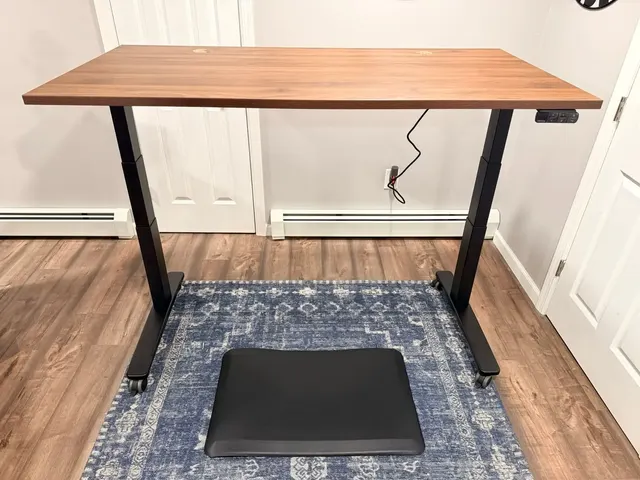
Editor's note: This guide was originally published in February 2026 with research-based recommendations. It now separates Matt's hands-on UPLIFT observations from the research-backed non-UPLIFT picks and uses live price tokens instead of a fixed bundle table. Real UPLIFT photos are included throughout.
Setting up an ergonomic home office isn't about buying the most expensive gear on the market. It's about choosing three or four key components that work together to support neutral positions and easier position changes during a long workday. Get the foundation wrong, and no amount of wrist rests or footpads will fix it.
The best ergonomic desk setup for a home office starts with the UPLIFT V3 Standing Desk ($599-$939), paired with the Sihoo Doro C300 ergonomic chair ($279.99−50%, self-adaptive lumbar, 4D coordinated armrests, adjustable headrest) or the UPLIFT Clarksville Ergonomic Chair ($359, adaptive lumbar, 2:1 synchro-tilt, UPLIFT Desk 15-year warranty), and the Ergotron LX monitor arm ($150-200, supports up to 25 lbs and 34" displays) or the Range-X by UPLIFT Desk ($139, 15-year warranty). Together, these pieces address three core fit questions: seat support, work-surface height, and screen position.
After analyzing standing desks, chairs, and monitor arms, with hands-on use of the UPLIFT V3 Standing Desk and UPLIFT Clarksville Ergonomic Chair, we've identified products that address the main fit decisions in a home office. Non-UPLIFT picks are based on published specifications and documentation, not WorkstationSetup hands-on tests.
The final cost depends on the live prices and exact configurations you choose. Start with the component that solves the clearest fit problem instead of assuming the most expensive complete setup is automatically better.
Why Your Desk Setup Matters More Than Any Single Product
Most people shop for ergonomic products in isolation. They buy a standing desk without thinking about monitor height, or invest in an expensive chair without considering how it interacts with their desk surface. The result is a collection of good products that don't work well together.
Ergonomics is a system problem. Your desk height determines your elbow angle. Your chair height affects your hip position. Your monitor placement dictates your neck posture. Change one variable and everything else shifts.
The products in this guide were selected specifically because they complement each other. The UPLIFT V3 Standing Desk provides height adjustability that pairs with the chair's adjustable seat and armrests. The monitor arm then lets you position your screen independently of the desk surface, so you maintain proper eye-level alignment whether sitting or standing.
The Complete Ergonomic Setup at a Glance
| Feature | UPLIFT V3 Standing Desk | Sihoo Doro C300 / UPLIFT Clarksville | Ergotron LX / Range-X |
|---|---|---|---|
| Category | Electric Standing Desk | Ergonomic Office Chair | Single Monitor Arm |
| Price | $599-$939 | $279.99−50% / $359 | $150-200 / $139 |
| Weight Capacity | 355 lbs | 330 lbs / 300 lbs | 25 lbs / 17.6 lbs |
| Height Range | 22.6" - 48.7" | Adjustable seat | 13" / 13.2" vertical |
| Assembly | Single-tool frame setup | Assembly required | Clamp or bolt-through mount |
| Warranty | 15 years (desk) | 3 years / 15 years | 10 years / 15 years |
| Key Strength | Stability, 50+ desktops, cable mgmt | Self-adaptive / adaptive lumbar | Effortless repositioning |
Our Top Picks
Best Standing Desk: UPLIFT V3 Standing Desk
The UPLIFT V3 Standing Desk is the standing desk we recommend for a complete ergonomic workstation. Its 355 lb capacity, 15-year desk warranty, and upgraded V3 frame make it the core of this setup. For Matt's full writeup, see our UPLIFT V3 Standing Desk review.

In Matt's documented walnut-laminate configuration, the steel frame stayed steady during normal typing at standing height. That observation applies to the configuration he used, not every desktop size, floor, caster, or maximum-height setup. UPLIFT lists dual-wall foot construction, a steel i-beam crossbar, steel motor-housing covers, and silicone pads on the leveling guides.
UPLIFT lists a 2-inch-per-second lift speed and operating noise below 48 dB. In Matt's setup, normal height changes were quick and quiet enough to make during a call. The six-axis anti-collision system is designed to reverse when it detects an obstruction, but it should not replace keeping people, pets, and equipment clear of the desk's travel path.
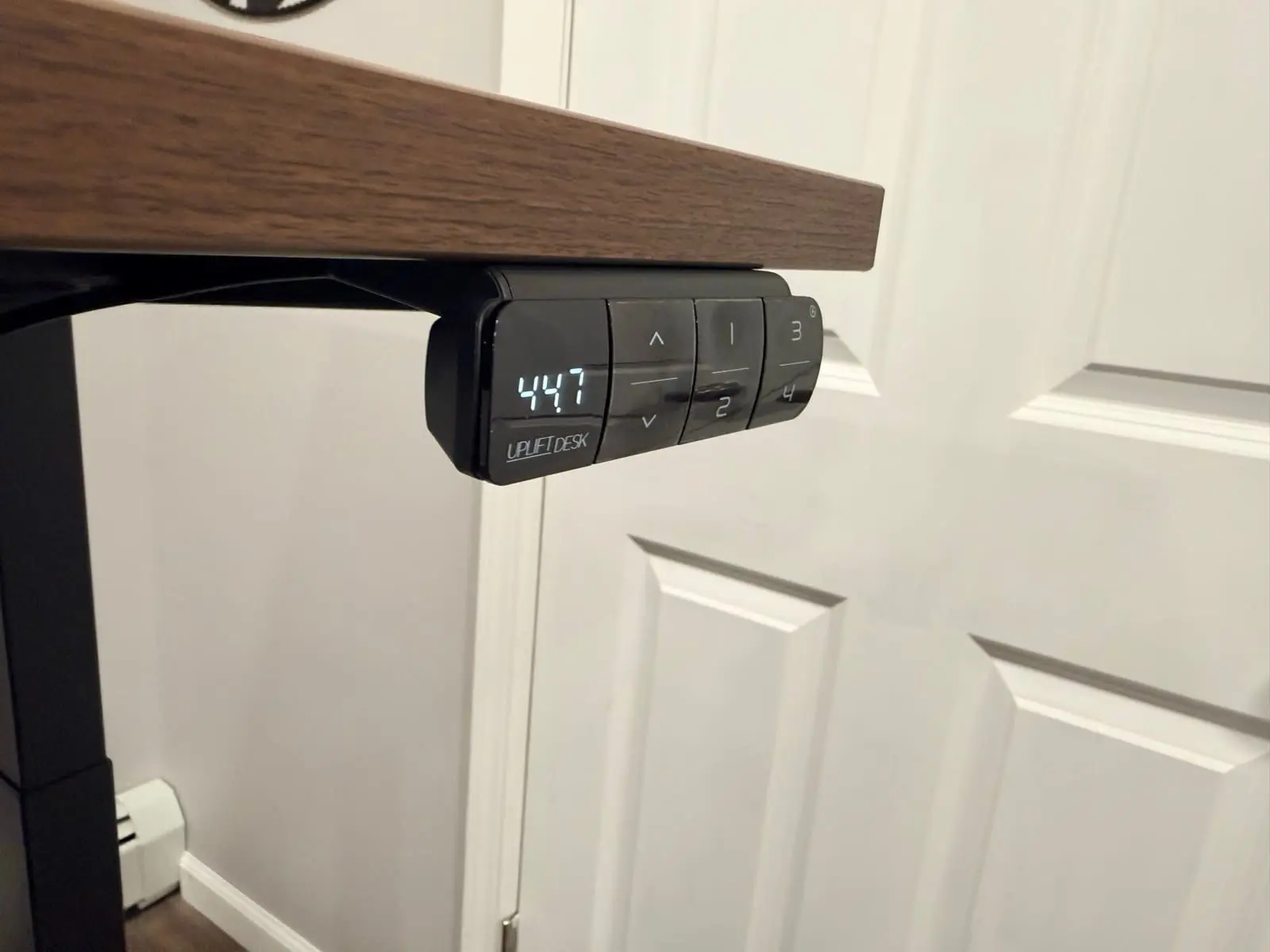
The advanced keypad stores four height presets and includes a USB charging port. One-button position changes make it easier to use the sit-stand function consistently. UPLIFT Desk says the V3 reduced the hardware count from 32 to 16 screws and uses pre-installed fasteners and a pre-installed control box. Matt's full review documents the real assembly experience.
UPLIFT lists a 355 lb lifting capacity, which leaves substantial published headroom for many multi-monitor workstations once the desktop and every mounted accessory are counted. The listed 22.6-to-48.7-inch height range covers a broad span, but you should measure your seated and standing elbow heights instead of relying on a population estimate. UPLIFT offers multiple desktop materials and sizes, and lists ANSI/BIFMA X5.5-2021 compliance for the V3.
The patent-pending FlexMount Cable Management system is included at no extra cost. The "ladder design" PET pouch holds up to 10 lbs of cables and adapters with tool-free depth adjustments. Oval slots in the i-beam provide multiple access points for routing cables front to back. The steel frame also includes 48 threaded mounting points for compatible UPLIFT accessories. Monitor arms still use the mount specified for that arm, such as a desk clamp or bolt-through mount.
UPLIFT lists a 15-year desk warranty. That coverage is useful, but it isn't proof that the desk will last 15 years or repay its premium. If you're also considering the current FlexiSpot E7 Pro, see our FlexiSpot E7 Pro vs UPLIFT V3 comparison. The V3 side includes Matt's hands-on experience, while the E7 Pro side is based on current manufacturer documentation and does not reuse an older Amazon model with a similar name.
If you want the two FlexiSpot frames against each other instead of that V3 compare, see FlexiSpot E6 Pro vs E7 Pro. That page is FlexiSpot vs FlexiSpot. Both desks stay research-backed.
If you want the two-motor E7 Pro against the four-motor E7 Plus Max instead of E7 Pro vs V3, see FlexiSpot E7 Pro vs E7 Plus Max. That 1v1 is the 2-motor vs 4-motor FlexiSpot split. Both desks stay research-backed.
Buying Tips
- Build your desk on the UPLIFT V3 desk builder to see current pricing as you add options. Confirm the certification for the exact desktop material you choose
- Choose the frame by clearance needs. A C-frame can move the crossbar toward the rear for more knee clearance, but measure the room and desktop before choosing a frame or foot configuration
- Consider the advanced keypad if presets and USB charging reduce friction in your routine. Confirm the current keypad features on the linked configuration before ordering
- Add the pop-up power grommet if you use a laptop. It puts power and USB right on the desktop surface instead of reaching under the desk
Best Ergonomic Chair: Sihoo Doro C300 (or UPLIFT Clarksville)
These two chairs take different approaches to seat material, lumbar support, armrests, and warranty coverage. The Clarksville observations are hands-on. The C300 recommendation is based on current Sihoo documentation, not WorkstationSetup sitting time.
The Sihoo Doro C300 ($279.99−50%) has a manufacturer-described self-adaptive lumbar design, a full-mesh seat and back, 4D coordinated armrests, and an adjustable headrest. Sihoo lists a 330 lb maximum user weight and a 3-year warranty. Current C300 documentation does not list a sliding seat-depth control. These are verified product specifications, not claims that WorkstationSetup has tested its comfort or durability.
The UPLIFT Clarksville Ergonomic Chair ($359) is the warranty-matched pick. Its adaptive lumbar frame has four height positions and flexes with the backrest. The synchronized tilt mechanism coordinates the seat and backrest as you recline. It uses a 3-inch molded polyurethane foam cushion and has a 300 lb weight capacity, but Matt's one-week notes do not establish long-term foam durability.
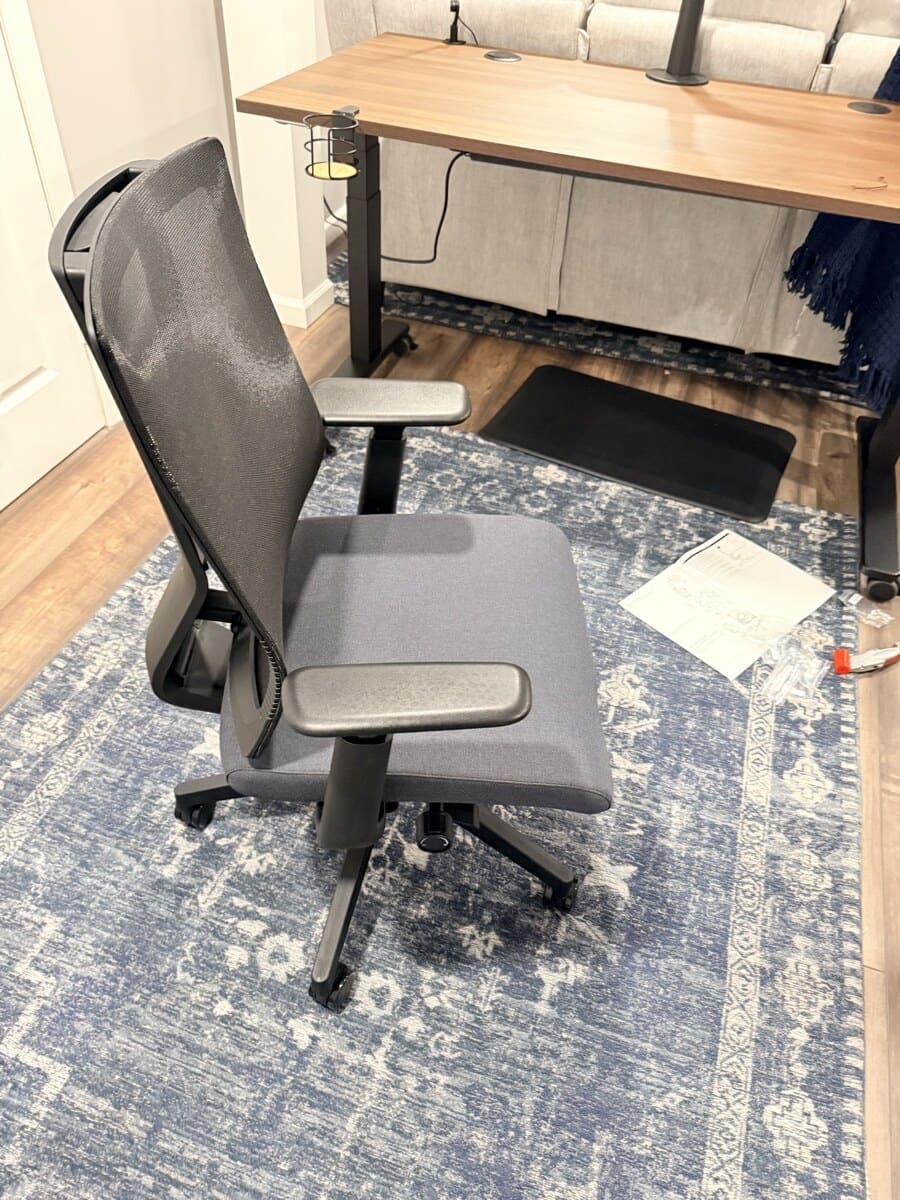
Choose the Sihoo Doro C300 if: you prefer a full-mesh seat and back, want an adjustable headrest and 4D coordinated armrests, and accept its shorter 3-year warranty.
Choose the UPLIFT Clarksville if: you want the 15-year warranty to match your UPLIFT V3 desk, prefer a foam seat cushion over mesh, or want a single-company warranty experience through UPLIFT Desk.
For more chair options, see our Best Ergonomic Chairs Under $400 guide.
Buying Tips
- Use the retailer's return period to evaluate chair fit. WorkstationSetup has not established a C300 break-in time
- Current C300 documentation does not list a sliding seat-depth control, so compare its published seat dimensions with your thigh length before ordering
- Use the 4D coordinated armrests to support your forearms without lifting your shoulders, then align the desk surface to that position
- Confirm the exact retailer and country are eligible for the stated warranty before ordering
Best Monitor Arm: Ergotron LX (or Range-X by UPLIFT Desk)
The Ergotron LX ($150-200) supports compatible displays up to 34 inches and 25 pounds. Its Constant Force spring is designed for repositioning, and it includes integrated cable routing and a 10-year warranty. Confirm your display weight and VESA pattern before ordering.
The Range-X Single Monitor Arm by UPLIFT Desk ($139) is a strong alternative that pairs cleanly with the UPLIFT V3 Standing Desk. It supports monitors from 3.75 to 17.6 lbs with 13.2 inches of height adjustment and 26.3 inches of forward reach. UPLIFT lists a 15-year warranty. The arm uses a desk clamp or bolt-through mount, depending on the installation.
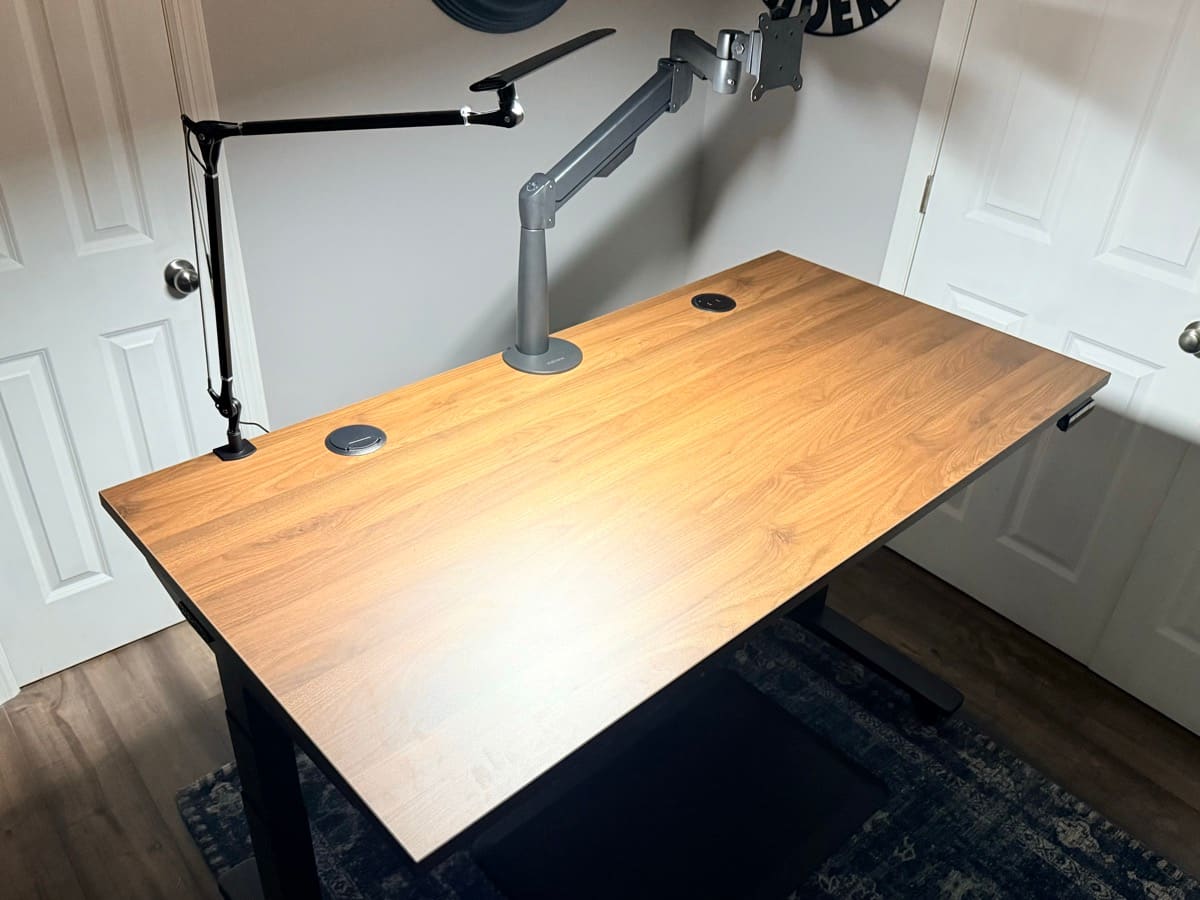
Choose the Ergotron LX if: your compatible monitor weighs more than 17.6 lbs but no more than 25 lbs, or you prefer its published adjustment system and 10-year coverage.
Choose the Range-X if: you want the 15-year warranty to match your UPLIFT V3 desk and your compatible monitor weighs between 3.75 and 17.6 lbs.
For more options including budget picks, see our Best Monitor Arms for Desk Space guide.
Buying Tips
- Weigh your monitor before ordering. The Ergotron LX supports 7-25 lbs, the Range-X supports 3.75-17.6 lbs
- Set the tension adjustment after mounting by following the manufacturer's instructions until the monitor stays in position
- Test the arm base location against the wall, desktop edge, and cable path before tightening it
- Route your monitor cable through the cable management before tightening the arm joints
How These Products Work Together
The real value of this combination isn't just good products. It's how they create an adaptable system that maintains proper ergonomics across multiple working positions.
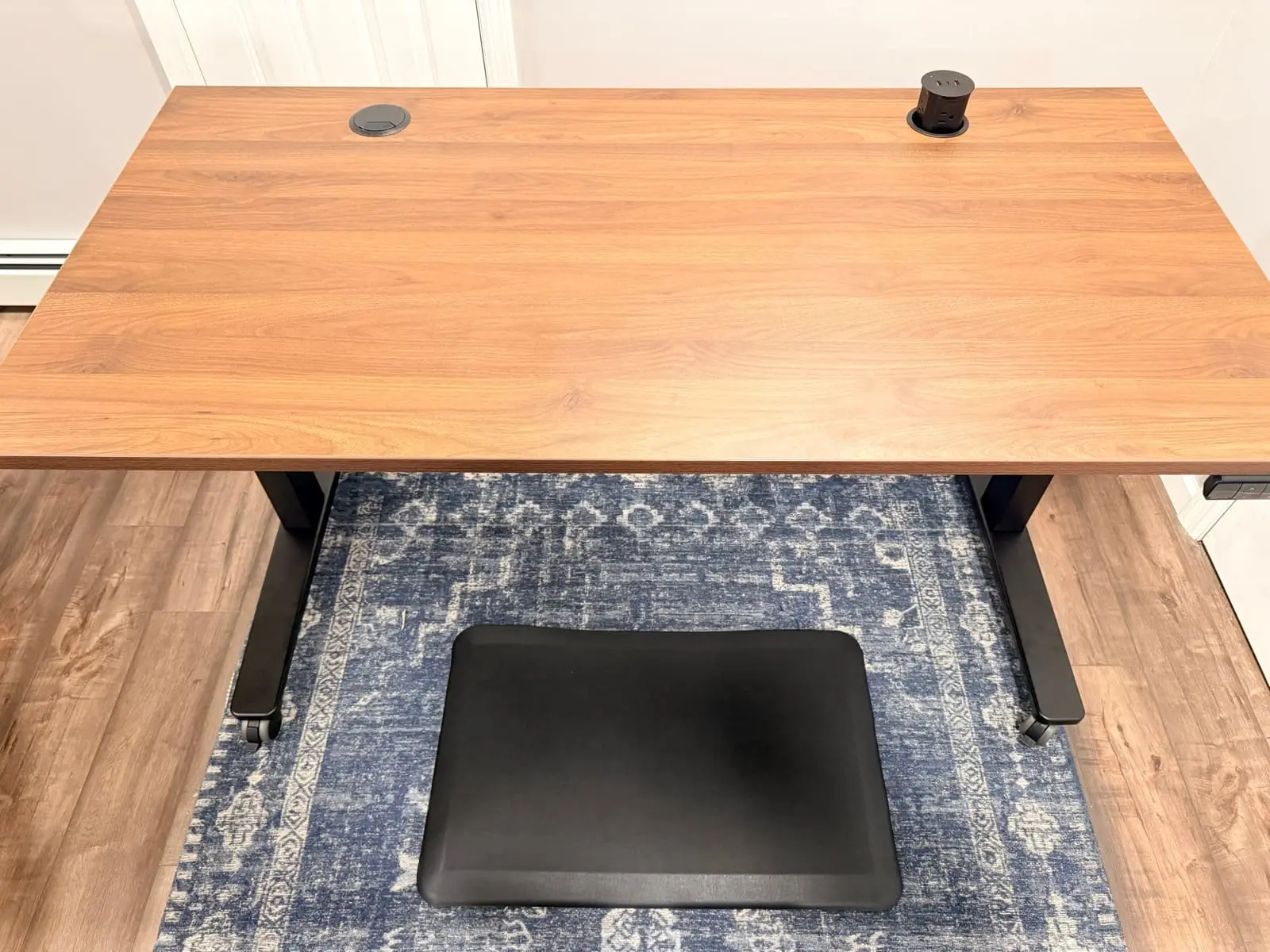
When sitting, set the UPLIFT V3 Standing Desk to a height where your elbows form roughly 90-degree angles with the keyboard. The chair's adjustable armrests should align with the desk surface so your forearms rest naturally without shoulder hunching. The monitor arm positions your screen so the top sits at or slightly below eye level, about an arm's length away.
When you press the UPLIFT V3's memory button to transition to standing height, move the monitor arm to match your new eye level. Transition time depends on the desk speed, monitor adjustment, and your routine. Recheck your keyboard angle, arm position, and screen distance at each height.
This is the key advantage over fixed setups. When all three components adjust independently, you can reduce common setup compromises and change position more easily.
Once the desk, chair, and screen position are set, lighting is the next system decision. The monitor light bar versus desk lamp comparison explains which option fits screen-focused work and which one is better for paper, broader task lighting, or video calls.
Current Price Check
| Component | Current Price |
|---|---|
| UPLIFT V3 Standing Desk | $599-$939 |
| Sihoo Doro C300 / UPLIFT Clarksville | $279.99−50% / $359 |
| Ergotron LX / Range-X | $150-200 / $139 |
Add the current prices for the exact combination you want, including desktop, color, caster, and monitor-arm options. For a lower target budget, see the Complete Home Office Setup Under $1,000 guide.
Step-by-Step Setup Guide
Step 1: Assemble and position the UPLIFT V3 Standing Desk. Start here since it's the heaviest component. Leave enough wall clearance for the desktop, cables, and monitor arm through the full height range. UPLIFT advertises a fast single-tool frame assembly, while Matt's hands-on review documents the complete real-world build. Use the leveling feet to steady the desk on your floor.
Step 2: Mount the monitor arm. Use the clamp or bolt-through method specified for the arm, then run it through its full range of motion before final tightening. Check rear-wall clearance and cable slack at both sitting and standing heights.
Step 3: Set desk memory presets. Sit in your chair to find your ideal sitting height (elbows at 90 degrees) and save as preset 1. Stand and save your standing height as preset 2. Save a third preset for perching height if you like.
Step 4: Assemble and calibrate the chair. With the desk at sitting height, adjust seat height so your feet rest flat and thighs are parallel to the ground. Set armrests to match the desk surface. Adjust seat depth so two to three fingers fit between the seat edge and the back of your knees.
Step 5: Position the monitor. While seated, place the top third of the screen at eye level, roughly an arm's length away. Tilt slightly backward (10-20 degrees) to reduce glare.
Step 6: Test the full range. Transition between sitting and standing presets. At each height, verify monitor, chair, and desk maintain comfortable positions. Adjust and resave presets as needed.
Common Ergonomic Setup Mistakes to Avoid
Setting the monitor too high. The top of your screen should be at or slightly below eye level, not above it. Looking upward strains your neck extensors and contributes to tension headaches. This is the single most common ergonomic error in home offices.
Ignoring the 90-degree elbow rule. Your elbows should form roughly 90-degree angles when your fingers rest on the keyboard. If you're reaching up or hunching your shoulders down, the desk height is wrong. This is exactly why a height-adjustable desk matters.
Locking out the chair recline. A fixed upright posture is not the only usable position. If your chair supports controlled recline, try a modest angle that keeps your feet supported and lets you change posture without reaching for the keyboard.
Never actually changing position. A standing desk only helps if you use its range. Start with short standing periods, change position before discomfort builds, and adjust the schedule to your body and workload. The V3's programmable presets reduce the friction of switching.
Positioning the monitor too close or too far. Start around an arm's length away, then adjust for screen size, text scale, vision, and whether you lean forward to read. The useful distance is the one that keeps text clear without pulling your head toward the screen.
Skipping breaks. No equipment replaces movement. Take brief movement breaks during long work blocks and change posture regularly instead of treating one chair or desk position as the answer for an entire day.
Frequently Asked Questions
Is a premium desk setup worth the cost?
It depends on your budget, work hours, and which constraints the equipment solves. Start with the component causing the clearest fit problem, compare live prices, and do not treat warranty length as proof that every product will last for the full coverage period.
Can I start with one product and add the others later?
Yes. Start with the component causing the clearest fit problem. For many seated workers that is the chair, but a desk outside your elbow-height range or a monitor that cannot reach a usable position may be the more urgent fix.
Do I need a standing desk mat with the UPLIFT V3?
An anti-fatigue mat can make standing more comfortable for some users. UPLIFT Desk also offers an Inclining Walking Pad if you want an active-work option. Neither is universally necessary, so add one only if it solves a comfort or movement need in your setup.
Will the Ergotron LX work with an ultrawide monitor?
The standard LX supports monitors up to 34 inches and 25 pounds, covering most ultrawides. For 38-inch or 49-inch super-ultrawides, you'll need the Ergotron HX (up to 42 pounds). Check your monitor's weight and VESA pattern before ordering.
How often should I switch between sitting and standing?
There is no single sit-stand interval that fits every person or task. Begin with short standing periods, switch before discomfort builds, and increase only if the position remains comfortable and productive.
What if I have limited space for a standing desk?
Check the smallest current V3 desktop and frame configuration against the exact room dimensions, door swing, chair clearance, and monitor-arm movement. A monitor arm can free surface area, but its rearward movement and clamp still need clearance.
Should I get the UPLIFT Clarksville or the Sihoo Doro C300?
The UPLIFT Clarksville ($359) gives you a 15-year warranty, an adaptive lumbar frame, and a foam cushion, with WorkstationSetup hands-on evidence. The Sihoo Doro C300 ($279.99−50%) gives you a manufacturer-documented self-adaptive lumbar design, full mesh, 4D coordinated arms, an adjustable headrest, a 330 lb limit, and 3-year coverage. Choose by fit and warranty priorities, not by an untested comfort claim. See our full chair comparison for details.
Are there cheaper alternatives for the full setup?
Yes. See the Complete Home Office Setup Under $1,000 guide or the Complete Home Office Setup Under $500 guide. Check the live prices in those guides because a bundle can cross its target when product pricing changes.
Evidence disclosure: Matt has assembled and used the UPLIFT V3 and Clarksville configuration shown here. The Sihoo, Ergotron, and other non-UPLIFT recommendations are research-backed analysis based on manufacturer documentation and verified product specifications, not WorkstationSetup hands-on tests. UPLIFT Desk provided some products for review.
Related Guides
- UPLIFT V3 Standing Desk Unboxing: Assembly walkthrough and real photos
- FlexiSpot E7 Pro vs UPLIFT V3: Head-to-head desk comparison
- FlexiSpot E6 Pro vs E7 Pro: Research-backed E6 Pro vs the current E7 Pro, not vs V3
- FlexiSpot E7 Pro vs E7 Plus Max: Two-motor E7 Pro vs four-motor E7 Plus Max, not vs V3
- Which UPLIFT Standing Desk Is Right for You?: Full UPLIFT lineup
- Best Standing Desks Under $700: Full desk roundup
- Best Ergonomic Chairs Under $400: Full chair comparison
- Best Monitor Arms for Desk Space: Full arm roundup
- Best Desk Lamps for Home Office: Complete your lighting
- Best Desk Mats for Home Office: Protect your desktop
- Desk Cable Management: Complete Setup Guide: Maximize FlexMount
- Complete Home Office Setup Under $1,000: Budget + UPLIFT premium builds